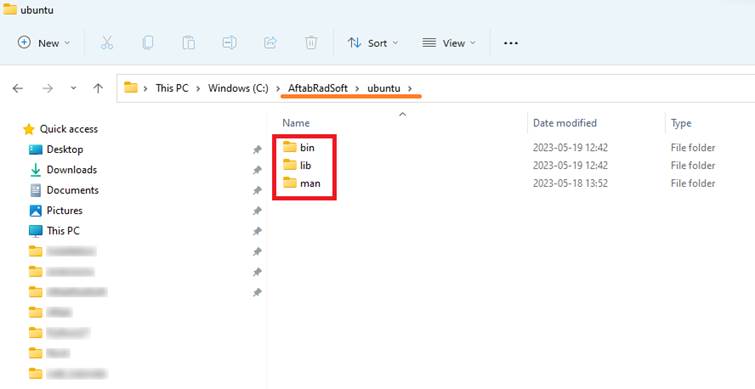
Install Linux based Radiance on Windows with WSL by running a batch file (install_Ubuntu.bat) with administrative rights
If the Windows Subsystem for Linux (WSL) has not been installed on your computer yet, and you are running Windows 10 version 2004 and higher (Build 19041 and higher) or Windows 11, you can use this tutorial to install WSL and Linux-based Radiance on your computer.
1-
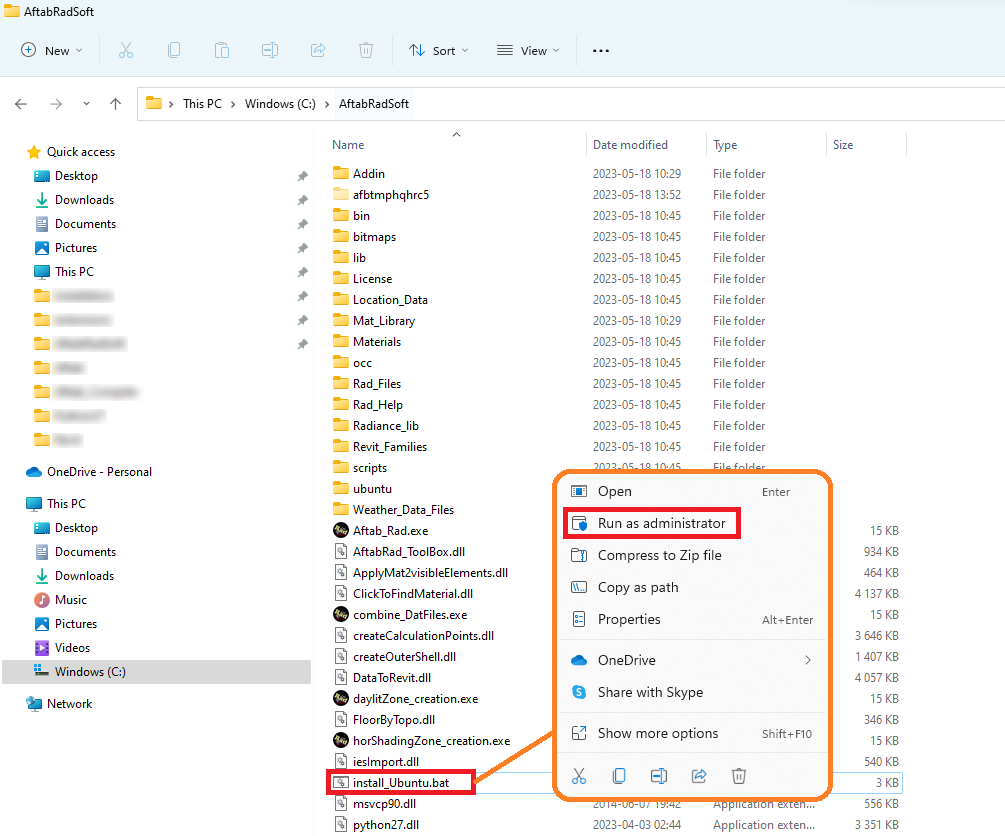
Find the install_Ubuntu.bat
batch file that should be placed under the main AftabRadSoft folder
2- Right click on the install_Ubuntu.bat file, and run it with administrative rights
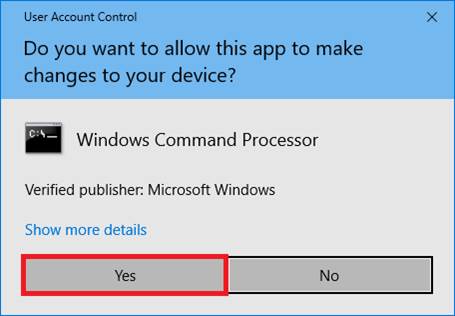
3- Press the Yes button
4- If Windows Subsystem for Linux (WSL) has not been installed on your computer yet, you will see messages like the below images:
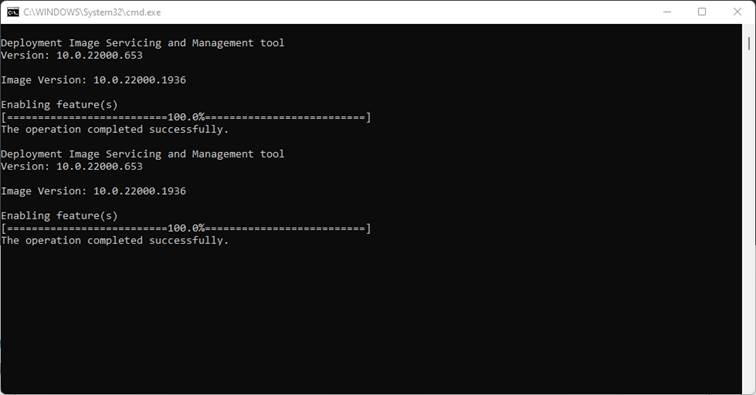

Then, you need to restart your computer and rerun the install_Ubuntu.bat file with administrative rights
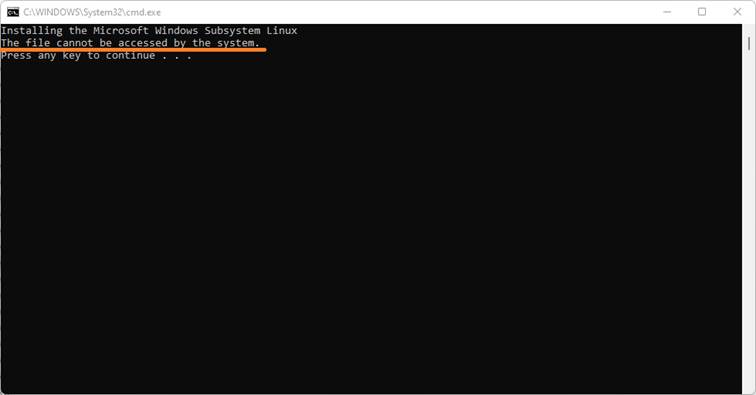
5- In this stage, if you face an error message like this, please follow the below steps
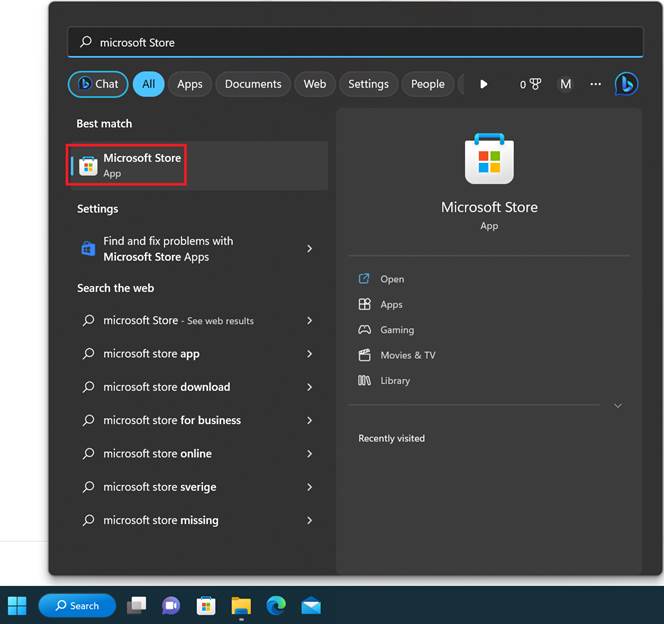
Go to the
Microsoft Store
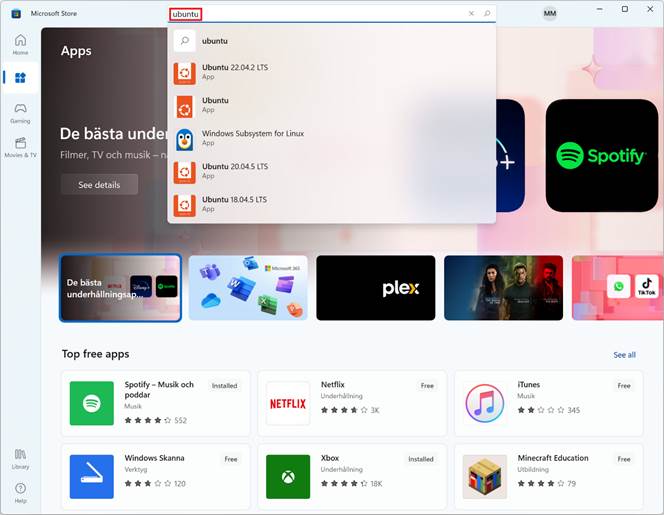
Search for
Ubuntu
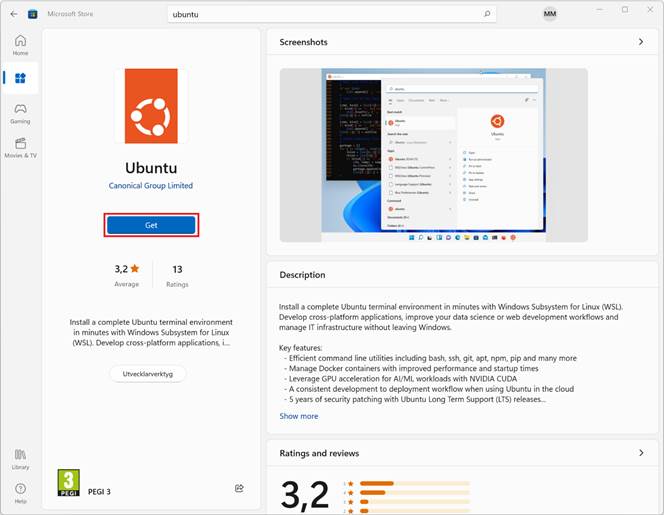
Install Ubuntu
by pressing the Get button
6- When the Ubuntu installation is done, (please restart
your computer if it is asked, then re-run the batch file again).
7- After re-running the install_Ubuntu.bat file, the below
page should pop up
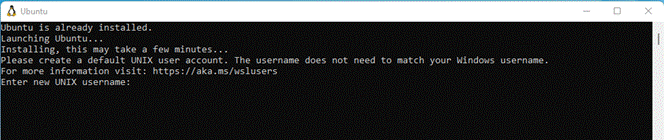
You can skip by closing the page or create a new
Username and Password to be used later in your Unix system.
If you want to create a new username, then you should
follow the Ubuntu rules being mentioned in the below to accept usernames:
-
Must start with a lowercase
letter
-
May only contain lowercase
letters, underscore (_), and dash (-)
-
May optionally end with a
dollar sign ($)
Then restart your computer.
8- To install The Linux-based Radiance, after installing the Ubuntu, right click on the install_Ubuntu.bat file, and re-run it with administrative rights again
Then you should see messages like these:
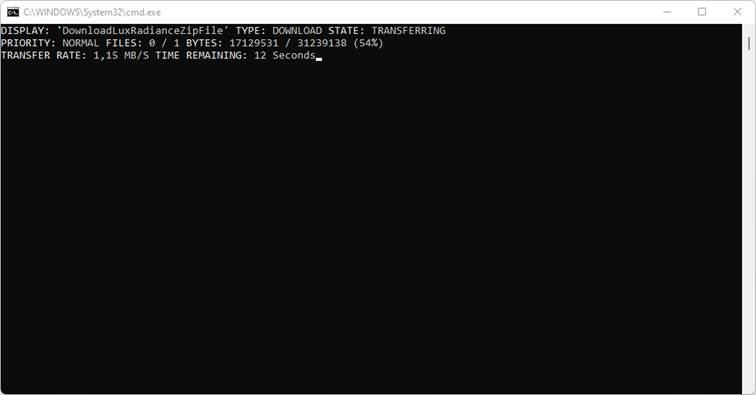
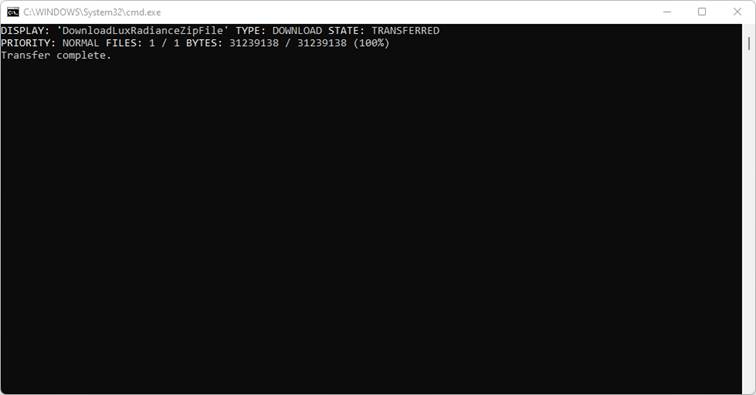
Finally, you should be able to see the Linux-based
Radiance files under the ubuntu folder in AftabRadSoft folder